Home / Support
How can we help?
Installation help for CX1 and Symmetry Firewall, account questions and refunds. Client portal users can also use the support chat inside the portal.
Client portal support
The fastest route. Open the Support page in your portal and a member of the team will reply.
Symmetry Firewall
Help installing the firewall on your website, or with a visitor blocked by mistake. Email us with your website address.
Chat with support in the portal
Every portal has a support chat. Open it, describe the problem and our team replies in the same place, so your MT5 account details are already attached.
Open the portal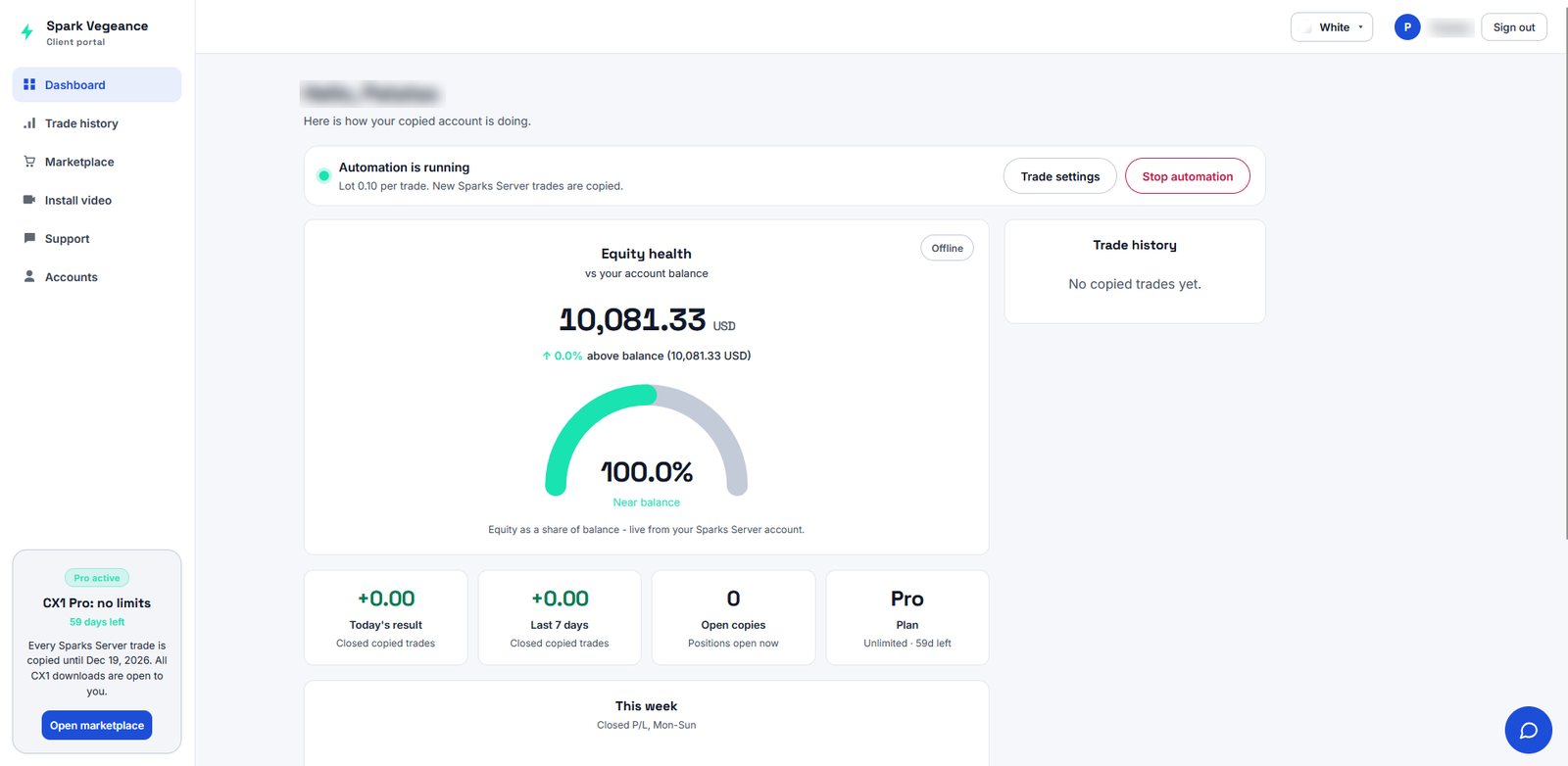
Common questions
I cannot see my trades in the client portal. What should I check?
Make sure MT5 is open, the CX1 Expert Advisor is attached to a chart with AutoTrading switched on, and the Sparks Vegeance server address is allowed under Tools > Options > Expert Advisors > Allow WebRequest. Then check that the MT5 account number in the portal matches the account you are logged in to.
Where do I put the CX1 file?
In MT5 choose File > Open Data Folder, open the MQL5 folder, then the Experts folder, and paste the CX1 file there. Restart MT5 or refresh the Navigator and drag CX1 onto a chart.
Do I need to compile CX1?
No. CX1 is delivered ready to run. You only copy it into the Experts folder.
How do I upgrade from CX1 Free to Lite or Pro?
Open the Marketplace in your client portal, choose the plan and pay. The plan activates automatically after the payment is confirmed. You do not need to reinstall anything.
How do I ask for a refund?
Open a ticket from the Support page in the client portal, or email [email protected] with your MT5 account number and payment details. Please read the Refund Policy first.
Symmetry Firewall blocked a real visitor or me. What do I do?
Open the Symmetry Firewall console on your website (your-domain/symmetry-firewall/console/), find the address and unban it. To make sure you are never blocked, go to Settings and press Add my address. If you need to switch protection off at once, press Pause protection in the console.
How do I install Symmetry Firewall?
Upload the symmetry-firewall folder to your website, open install.php in your browser, enter your licence key and choose a console sign-in, then press Switch on automatic protection. Your website needs PHP 8.1 or newer. If the firewall cannot reach the licence check, your site simply carries on unprotected and is never blocked.
How long are my trade history and chat history kept in the portal?
Seven days. Before they are cleared you can download both from the portal, so you keep your own copy.
Still stuck? Email [email protected] and include your MT5 account number.